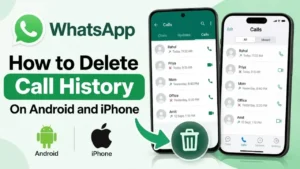
WhatsApp keeps your voice and video calls listed in the Calls section. Over time, that list can become crowded with old, missed, incoming, and outgoing calls.
If you want to remove old records for privacy or simply keep your Calls tab clean, WhatsApp lets you delete individual entries or clear the call history. The exact steps can vary between Android and iPhone.
Here’s how to delete WhatsApp call history on both devices.
What Appears in WhatsApp Call History?
The WhatsApp Calls section can include different types of call records, such as:
- Voice calls
- Video calls
- Missed calls
- Incoming calls
- Outgoing calls
Deleting these entries only removes the call records from your call history. It does not delete your WhatsApp chats, photos, videos, documents, or contacts.
WhatsApp also notes that call history is separate from your regular phone bill because WhatsApp calls use an internet connection.
Can You Delete WhatsApp Call History?
Yes. WhatsApp provides options to remove individual calls or clear the entire call log.
This is useful if you only want to remove a particular call instead of deleting everything. If you want to start with a clean Calls section, you can clear the complete call history.
How to Delete a Single WhatsApp Call on Android
If you only need to remove one call, there is no need to clear the entire list.
- Open WhatsApp on your Android phone.
- Go to the Calls tab.
- Find the call record you want to remove.
- Tap the call to open its details.
- Tap the three-dot menu.
- Select Remove from call log.
The selected call will be removed from your WhatsApp call history. WhatsApp’s current help documentation confirms that individual calls can be removed this way.
How to Clear All WhatsApp Calls on Android
Want to remove the entire call list? You can clear the call log from the Calls section.
- Open WhatsApp.
- Tap Calls.
- Tap the three-dot menu in the top-right corner.
- Select Clear call log.
- Confirm the action if prompted.
Once confirmed, the available records in your WhatsApp call history will be cleared.
How to Delete an Individual WhatsApp Call on iPhone
On iPhone, you can remove a particular call without clearing the rest of your call history.
- Open WhatsApp.
- Tap Calls at the bottom.
- Find the call you want to remove.
- Swipe left on the call entry.
- Tap Delete.
Only that selected call record will be removed.
How to Clear WhatsApp Call History on iPhone
If you want to remove the complete list, open the Calls section and use the available editing and clearing options.
- Open WhatsApp on your iPhone.
- Tap Calls.
- Tap Edit in the upper-left corner.
- Select Clear.
- Confirm when WhatsApp asks you to continue.
Your available WhatsApp call records will then be removed from the Calls section.
Does Deleting Call History Delete WhatsApp Chats?
No. Removing your call history does not normally delete your WhatsApp conversations.
Your chats, group conversations, photos, videos, documents, and other WhatsApp data are handled separately from the call list. So, clearing the Calls section does not mean that your conversations will disappear.
If you want to delete chats or media, those have to be removed separately.
Can Deleted WhatsApp Call History Be Restored?
WhatsApp says deleted call history can only be restored through a backup that contains the relevant data.
This means you should be careful when clearing your call history. If you later restore an older WhatsApp backup, the information contained in that backup can affect what is restored.
So, if you’re deleting call records because you’re preparing your phone for someone else, don’t rely on simply clearing the Calls section. It’s better to review your other personal WhatsApp data as well.
Why Delete WhatsApp Call History?
There are several simple reasons why you might want to clear old call records.
Privacy
You may not want old call records sitting visibly in the Calls section, especially if someone else occasionally uses your phone.
Keep WhatsApp Organized
A long list of old calls can make it harder to find recent calls. Removing unnecessary entries keeps the section cleaner.
Remove Old Records
Some calls simply don’t need to remain in your call history forever. Deleting them can make the list easier to manage.
Before Giving Away Your Phone
If you’re selling, giving away, or handing your phone to someone else, it’s worth checking your WhatsApp call history along with chats, media, accounts, and other personal information.
Things to Know Before Deleting WhatsApp Call History
Before clearing your call history, keep a few things in mind.
First, deleting a call removes the record from your visible WhatsApp call history. WhatsApp says it cannot restore deleted call history unless the information exists in a backup.
Second, clearing the Calls section does not delete your WhatsApp chats or media.
Finally, WhatsApp’s menus can change slightly with app updates, so the wording or position of an option may look different on your phone.
Final Thoughts
Deleting WhatsApp call history is a simple way to keep the Calls section clean and remove records you no longer need.
On Android, you can remove a specific call or use Clear call log to delete the available call history. On iPhone, you can delete individual entries or clear the call list from the Calls section.
Just remember that call history and WhatsApp chats are separate. Clearing your calls won’t remove your conversations, photos, videos, or documents. If privacy is the reason you’re doing this, it’s worth taking a quick look at the rest of your WhatsApp data too.